

Finding the right email client isn't as easy as it used to be. While web-based services like Gmail and Outlook work well for many people, they aren't always the best choice if you manage multiple custom-domain email accounts, value your privacy, or want more control over how you access and organise your inbox. That's where free and open source email clients come in.
Unlike webmail, desktop email clients let you manage all your email accounts from one place, work offline, organise messages more efficiently, and often include advanced features such as encryption, calendars, events, contact management, and customisable plugins. Because their source code is publicly available, open source email clients also offer greater transparency and are regularly reviewed and improved by active developer communities.
Whether you're a business owner managing customer communications, a digital marketer with multiple inboxes, a freelancer, or simply someone looking for a reliable alternative to Gmail or Outlook to manage your custom-domain emails, there's an email client that fits your workflow.
To help you choose the right one, I researched and compared the best free and open source email clients available today. I evaluated each option based on its ease of use, supported operating systems, security features, performance, customisation options, email provider compatibility, and overall user experience. Whether you use Windows, macOS, Linux, or Android, you'll find an option that meets your needs.
Table of Contents
What Is an Email Client?
An email client is a software application that lets you send, receive, organise, and manage emails from one or more email accounts in a single place. Instead of signing in to each email account through a web browser, an email client connects directly to your email provider, downloads or syncs your messages, making it easier to manage your inbox.
Most email clients support standard email protocols such as IMAP, POP3, JMAP and SMTP, allowing them to work with popular email providers like Gmail, Outlook, Yahoo Mail, Zoho Mail, Proton Mail, and custom domain email accounts. Many also include helpful features like offline access, advanced search, message filters, calendars, contact management, encryption, and support for plugins or extensions.
Unlike webmail services, which run entirely in your browser, email clients are installed on your computer or mobile device. Once connected to your email accounts, they automatically sync your messages, helping you stay productive whether you’re online or offline.
Why Choose an Open Source Email Client?
Whether you’re managing personal emails or running a business, the email client you use can have a significant impact on your productivity, security, and privacy. While many proprietary email clients offer excellent features, open source alternatives provide greater transparency, flexibility, and control over your data. Here are some of the biggest reasons to choose an open source email client.
- Better Privacy
One of the biggest advantages of open source email clients is privacy. Since the source code is publicly available, developers and security experts can inspect it to verify how the software handles user data. This transparency makes it much harder for hidden tracking, data collection, or suspicious code to go unnoticed. If protecting your personal or business communications is a priority, an open source email client gives you greater confidence in how your information is managed.
- Improved Security
Security is another major reason people choose an open source email client. Because the code is open for public review, vulnerabilities can often be discovered and fixed quickly by contributors around the world. Many open source email clients also support modern security features such as SSL/TLS encryption, OpenPGP encryption, digital signatures, and phishing protection. While no software is completely immune to security risks, active community reviews help keep open source email clients reliable and up to date.
- It’s Completely Free to Use
Most open source email clients are available at no cost. You can download, install, and use them without paying subscription fees or purchasing licenses. This makes them an excellent choice for students, freelancers, startups, small businesses, and anyone looking to reduce software expenses.
- Greater Customisation
Open source email clients are often highly customisable. Many support themes, extensions, plugins, keyboard shortcuts, and advanced settings that let you personalise the interface and workflow. If you have the skills, you can even modify the source code to add features or adapt the application to your specific needs.
- Manage Multiple Email Accounts in One Place
Instead of opening separate browser tabs for Gmail, Outlook, Yahoo Mail, and your business email, an open source email client lets you manage multiple accounts from a single dashboard. This unified inbox saves time, improves organisation, and makes it easier to stay on top of personal and professional communications.
- Work Offline
Unlike webmail services that require an internet connection for many tasks, most desktop email clients store copies of your emails locally. This means you can read old messages, search your inbox, draft new emails, and organise folders even when you’re offline. Once your internet connection is restored, the client automatically syncs your changes with the email server.
- Wide Compatibility with Email Providers
Most open source email clients support industry-standard email protocols such as IMAP, POP3, and SMTP. As a result, they work with nearly every major email provider, including Gmail, Outlook, Yahoo Mail, Zoho Mail, Proton Mail, Fastmail, and custom domain email accounts. This flexibility allows you to switch email providers without learning an entirely new application.
- No Vendor Lock-In
Many proprietary email applications encourage users to stay within a specific ecosystem. Open source email clients generally avoid this limitation by supporting open standards rather than tying users to a single provider. You can move between Gmail, Microsoft 365, Proton Mail, or your own mail server without changing the application you use every day.
Best Free and Open Source Email Clients
With dozens of free and open source email clients available, choosing the right one can be challenging. Some are built for speed and simplicity, while others focus on privacy, advanced customisation, or managing multiple email accounts. The best choice ultimately depends on your operating system, workflow, and the features you value most.
To make your decision easier, I compared the top free and open source email clients based on ease of use, supported platforms, security, performance, customisation options, and compatibility with popular email providers such as Gmail, Outlook, and Proton Mail. Below are the 5 best open source email clients, along with their standout features, advantages, and cons.
Thunderbird
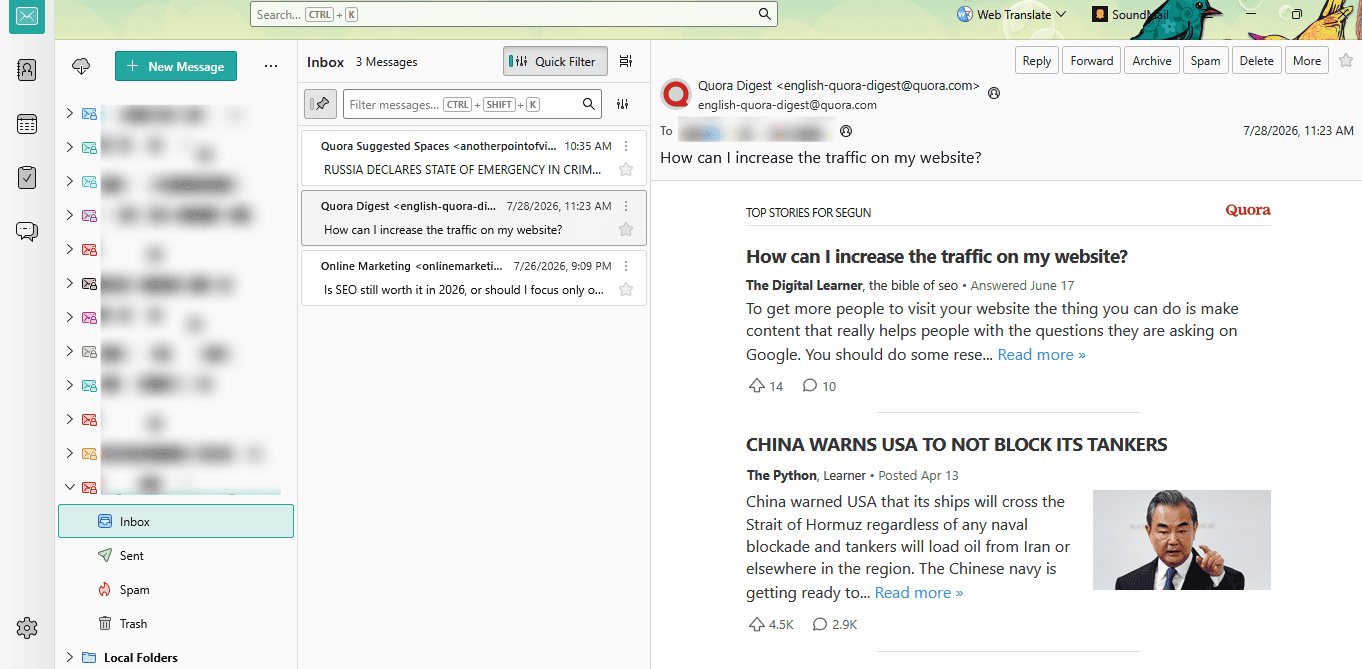
If you’re looking for a free and open source email client that balances ease of use, performance, security, and flexibility, Mozilla Thunderbird is hard to beat. Developed by the Mozilla Foundation, the organisation behind the Firefox web browser, Thunderbird has been one of the most trusted desktop email clients for more than two decades.
Thunderbird is designed to simplify email management, whether you’re checking a single personal inbox or managing multiple business email accounts. It supports all major email providers, including Gmail, Outlook, Yahoo Mail, Proton Mail, Zoho Mail, Fastmail, and custom domain email accounts through standard email protocols such as IMAP, POP3, and SMTP.
One of Thunderbird’s biggest strengths is its combination of simplicity and powerful features. Beginners can set it up within minutes, while advanced users can customise nearly every aspect of the application using extensions, themes, filters, and advanced account settings. Unlike many proprietary email clients, Thunderbird doesn’t require a subscription or lock users into a specific ecosystem, making it an excellent long-term choice for both individuals and businesses.
Thunderbird is available for Windows, macOS, Linux and Android smartphones, receives regular security updates, and is actively maintained by a large community of developers. Whether you’re a student, freelancer, digital marketer, entrepreneur, or IT professional, Thunderbird offers the tools needed to manage your email efficiently without sacrificing privacy.
Key Features of Thunderbird
- Unified Inbox for Multiple Email Accounts
Thunderbird allows you to connect and manage multiple email accounts from one application. Instead of switching between Gmail, Outlook, Yahoo Mail, and business email accounts in separate browser tabs, you can access everything from a single dashboard.
- Easy Account Setup
Adding a new email account takes only a few minutes. Simply enter your name, email address, and password, and Thunderbird automatically detects the correct server settings for most popular providers.
- Advanced Search and Email Filtering
Finding an old email becomes much easier with Thunderbird’s powerful search tools. You can search by sender, recipient, subject, date, keywords, or message content. It also lets you create custom filters that automatically sort incoming emails into folders, apply labels, archive messages, or forward them based on rules you define.
- Built-in Calendar and Task Management
Thunderbird includes an integrated calendar that lets you schedule meetings, create reminders, manage appointments, and organise daily tasks without leaving the application. You can synchronise calendars with supported online services, making it a practical productivity tool for both personal and business use.
- Contact Management
Managing contacts is straightforward with Thunderbird’s built-in address book. You can organise contacts into groups, store multiple email addresses for each person, and quickly search your contact list when composing emails.
- OpenPGP Email Encryption
Security-conscious users will appreciate Thunderbird’s built-in support for OpenPGP encryption. This feature allows you to encrypt email messages so only the intended recipient can read them. It also supports digital signatures, enabling recipients to verify that a message genuinely came from you and wasn’t altered during transmission.
- Strong Spam and Phishing Protection
Thunderbird includes adaptive spam filtering that learns from your actions over time. As you mark unwanted messages as spam, the software improves its ability to identify similar emails in the future. It also warns you about suspicious links and potential phishing attempts before they become a problem.
- Extensive Add-on and Extension Support
One of Thunderbird’s greatest strengths is its rich ecosystem of extensions. You can install add-ons that introduce new features such as AI writing assistants, advanced calendars, email templates, CRM integrations, task management, custom themes and productivity tools.
- Offline Email Access
Once your emails have been synchronised, Thunderbird stores them locally on your computer. This allows you to read messages, search your inbox, organise folders, and draft new emails even without an internet connection. Any changes you make while offline are automatically synchronised the next time you connect to the internet.
Thunderbird Pros and Cons
Pros
- Completely free and open source
- Easy to set up and use
- Supports unlimited email accounts
- Supports all emails, and custom domains
- Built-in calendar and task management
- Excellent OpenPGP encryption support
- Powerful search and message filtering
- Extensive extension library
- Active development with regular updates
- Supports Windows, macOS, Linux and Mobile
Cons
- The interface can feel dated compared to some newer email clients.
- Large mailboxes may take longer to index during the initial setup.
Thunderbird Pricing
Thunderbird is completely free to download and use. There are no subscription fees, licensing costs, or premium feature tiers. However, you can support the project’s continued development through voluntary donations.
Betterbird
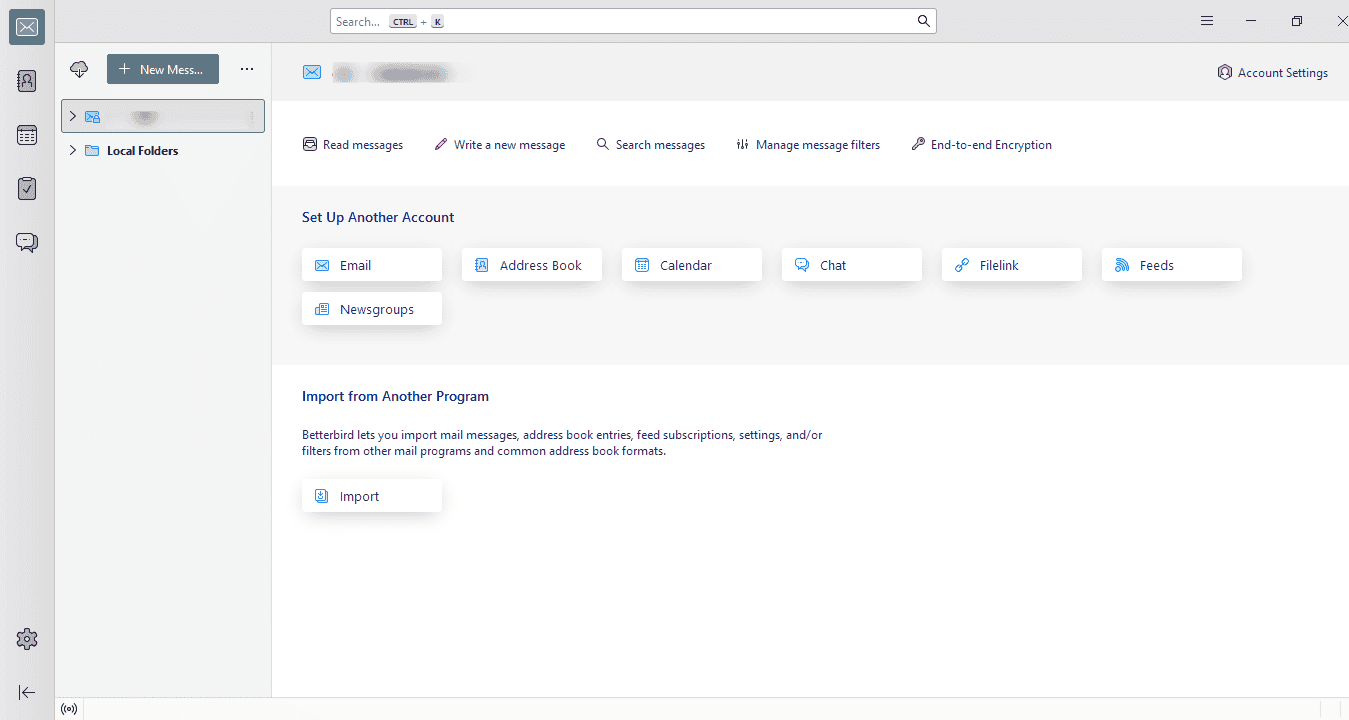
If you like Mozilla Thunderbird but wish it fixed some of its long-standing bugs and included a few extra productivity features, Betterbird is an excellent choice. Betterbird is a free and open source email client built on Thunderbird’s source code, meaning it retains everything users love about Thunderbird while introducing additional improvements, bug fixes, and features that haven’t yet made their way into the official Thunderbird release.
Betterbird was created to provide a better user experience without changing the familiar Thunderbird interface. Instead of reinventing the application, the developers focused on improving stability, fixing known issues, enhancing email handling, and adding practical features requested by the community.
Because Betterbird shares Thunderbird’s foundation, it supports virtually every major email provider, including Gmail, Outlook, Yahoo Mail, Proton Mail, Zoho Mail, Fastmail, Microsoft 365, and custom business email accounts. It also works with standard email protocols such as IMAP, POP3, and SMTP, making migration from Thunderbird quick and painless.
If you’re already using Thunderbird, switching to Betterbird is straightforward because you can usually continue using your existing Thunderbird profile without reconfiguring your email accounts.
Key Features of Betterbird
- Built on Thunderbird
Betterbird is fully compatible with Thunderbird while offering additional improvements. It keeps the familiar interface, menu layout, and account management tools, making it easy for existing Thunderbird users to switch without a learning curve.
- Supports Multiple Email Accounts
Betterbird lets you manage multiple email accounts. Whether you use Gmail for personal communication, Outlook for work, and a custom domain for your business, you can access everything from one interface.
- Improved Email Search
Searching through thousands of emails is fast and accurate. Betterbird includes powerful search capabilities that help you locate messages with keywords, recipients, dates, attachments, or subjects.
- OpenPGP Encryption
Betterbird includes built-in OpenPGP support for encrypting email messages and creating digital signatures. Encryption helps protect sensitive communications, while digital signatures verify that emails haven’t been altered.
- Calendar and Task Management
Betterbird also includes an integrated calendar that lets you schedule appointments, create reminders, organise meetings, and manage tasks directly on the application.
- Offline Email Access
Betterbird stores the synchronised emails locally so that you can read messages, draft replies, organise folders, and search your inbox without an active internet connection. Once you’re back online, your changes are automatically synchronised with the mail server.
Betterbird Pros and Cons
Pros
- Completely free and open source
- Based on the trusted Thunderbird platform
- Supports unlimited email accounts
- Compatible with all email providers
- Excellent search and filtering capabilities
- Built-in OpenPGP encryption
- Supports Thunderbird extensions and themes
- Available for Windows, macOS, and Linux
Cons
- The interface looks very similar to Thunderbird
- Smaller development team and community.
- No official mobile app is available.
Betterbird Pricing
Betterbird is completely free to download and use. There are no licensing fees or subscription plans, and the project is supported through community contributions and donations.
Claws Mail
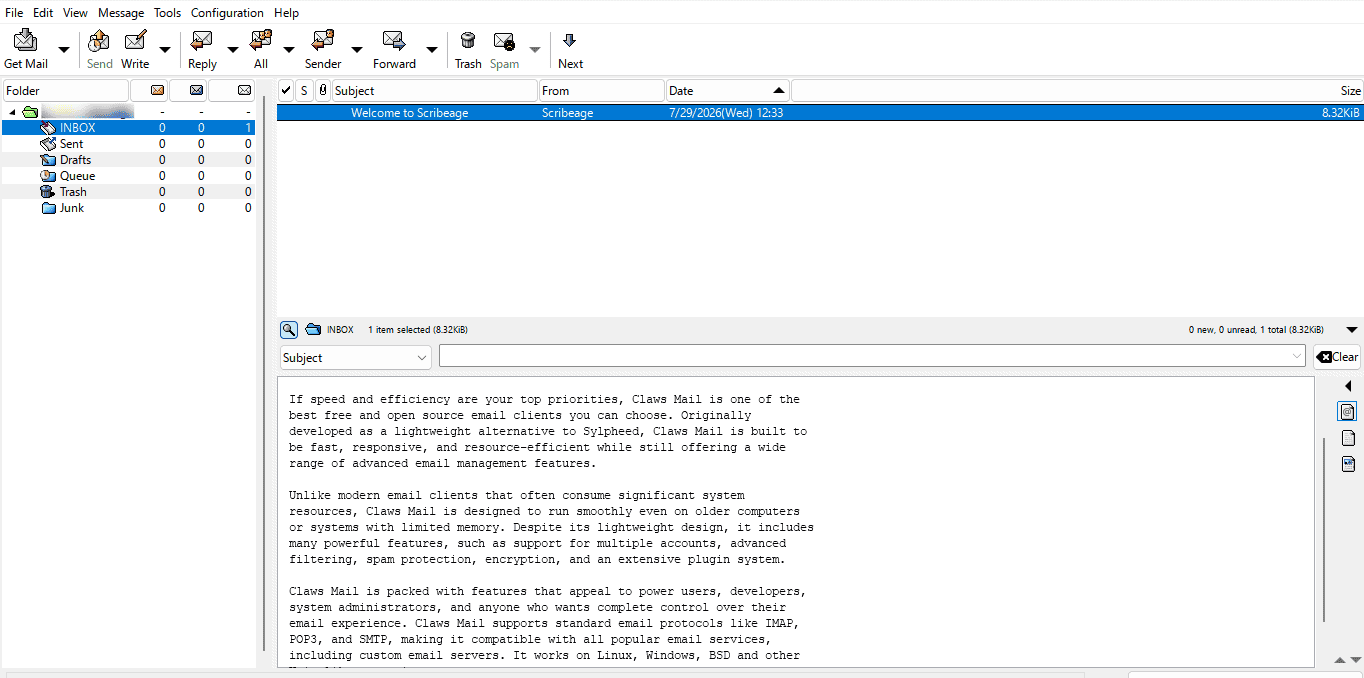
If speed and efficiency are your top priorities, Claws Mail is one of the best free and open source email clients you can choose. Originally developed as a lightweight alternative to Sylpheed, Claws Mail is built to be fast, responsive, and resource-efficient while still offering a wide range of advanced email management features.
Unlike modern email clients that often consume significant system resources, Claws Mail is designed to run smoothly even on older computers or systems with limited memory. Despite its lightweight design, it includes many powerful features, such as support for multiple accounts, advanced filtering, spam protection, encryption, and an extensive plugin system.
Claws Mail is packed with features that appeal to power users, developers, system administrators, and anyone who wants complete control over their email experience. Claws Mail supports standard email protocols like IMAP, POP3, and SMTP, making it compatible with all popular email services, including custom email servers. It works on Linux, Windows, BSD and other Unix-like operating systems.
Key Features of Claws Mail
- Lightweight and Fast Performance
One of Claws Mail’s biggest strengths is its speed. The application launches quickly, consumes very little memory, and remains responsive even when managing thousands of emails. It is an excellent choice for older computers, Linux distributions with limited resources, or users who simply prefer fast software over flashy interfaces.
- Advanced Email Filtering
Claws Mail offers one of the most flexible filtering systems available in an open source email client. You can automatically sort incoming emails based on sender, recipient, subject, keywords, message size, or custom rules.
- Plugin Support
Claws Mail supports numerous plugins that expand its capabilities. Available plugins include Spam filtering, RSS reader integration, PDF viewing, notification enhancements, Calendar support, and extra import and export tools. You can install only the plugins you need to help keep the application lightweight.
- OpenPGP and SSL/TLS Encryption
Security is another area where Claws Mail performs well. It supports OpenPGP encryption for secure email communication and SSL/TLS encryption for secure connections to mail servers.
- Built-in Spam Filtering
Claws Mail integrates with popular spam filtering tools such as SpamAssassin and Bogofilter, helping identify and block unwanted emails before they clutter your inbox.
- Offline Email Access
After synchronising your email accounts, Claws Mail stores messages locally on your computer. This allows you to read emails, compose replies, search folders, and organise messages even when you’re offline. Your changes are synchronised automatically once you reconnect to the internet.
- Highly Customisable Interface
Although Claws Mail has a minimalist design, you can customise many aspects of the interface, including toolbars, layouts, keyboard shortcuts, fonts, colours, and plugins.
Claws Mail Pros and Cons
Pros
- Completely free and open source
- Extremely fast and lightweight
- Uses very little memory and CPU resources
- Supports multiple email accounts
- Powerful filtering and automation tools
- Extensive plugin support
- OpenPGP and SSL/TLS encryption
- Excellent spam filtering options
- Reliable offline access
- Works well on older computers
Cons
- The interface looks dated compared to newer email clients.
- There is a steeper learning curve for beginners.
- Some advanced features require additional plugins and configuration.
- No built-in calendar or task management
Claws Mail Pricing
Claws Mail is completely free to download and use under an open source license, with no subscription fees, premium plans, or paid feature tiers.
KMail
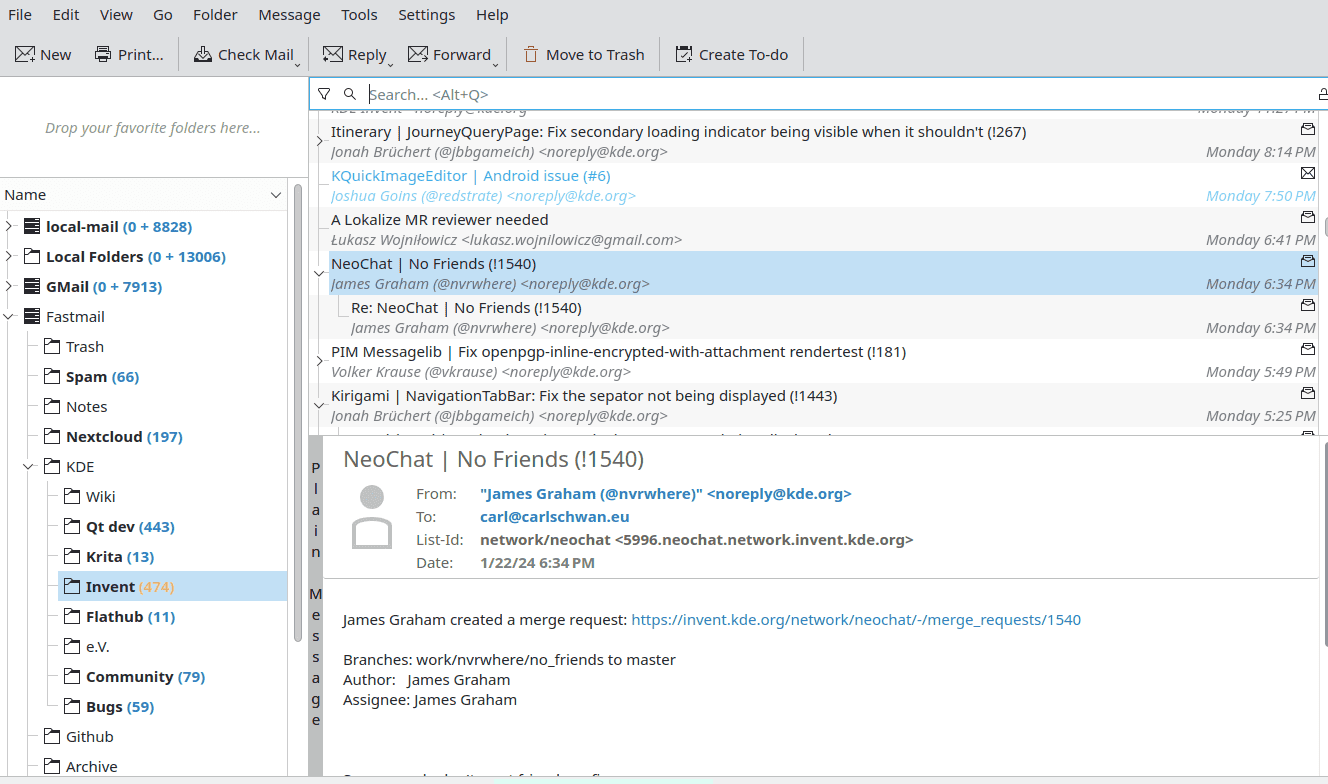
If you’re a Linux user who relies on the KDE Plasma desktop environment, KMail is one of the best free and open source email clients available. Developed by the KDE Community, KMail is part of the Kontact personal information management (PIM) suite, which combines email, calendars, contacts, notes, journals, and task management into one integrated application. KMail only supports the Linux operating system, though it can be compiled for other Unix-like systems; it delivers its best experience on Linux, especially within the KDE Plasma desktop environment.
Rather than serving as just an email client, KMail is designed to be a complete communication hub for both personal and business use. It offers a clean interface, supports multiple email accounts, and includes advanced features such as powerful filtering, encryption, spam protection, and seamless integration with other KDE applications.
KMail supports all major email providers, including Gmail, Outlook, Microsoft 365, Yahoo Mail, Proton Mail, Zoho Mail, Fastmail, and custom domain email accounts. It also works with industry-standard protocols such as IMAP, POP3, and SMTP, making it easy to migrate from another email client without changing your email provider.
Key Features of KMail
- Multiple Email Account Support
KMail allows you to manage multiple personal and business email accounts from one application. Each account can have its own folders, signatures, identities, and settings, making organisation simple even if you manage several inboxes.
- Integrated Calendar, Contacts, and Tasks
One of KMail’s biggest strengths is its integration with the Kontact suite. Instead of using separate applications for scheduling and contact management, you can manage Meetings, Appointments, Calendars, Contacts, To-do lists, Notes and Journals.
- Powerful Search
With KMail, searching through large mailboxes is fast and efficient. You can search by sender, recipient, subject, keywords, attachments, or message content, making it easy to locate important emails even years after receiving them.
- OpenPGP and S/MIME Encryption
KMail places a strong emphasis on security by supporting both OpenPGP and S/MIME encryption. These technologies allow you to encrypt confidential emails, digitally sign messages, verify sender identities and protect sensitive business communications.
- Built-in Anti-Spam and Anti-Phishing Tools
KMail integrates with popular spam filtering technologies to reduce unwanted email and identify suspicious messages before they reach your inbox. Combined with secure SSL/TLS connections, these protections help safeguard users against phishing attacks and spam campaigns.
- Offline Email Access
KMail stores synchronised emails locally, allowing you to read messages, search folders, organise your inbox, and compose emails without an internet connection. Any changes you make while offline automatically synchronise once your connection is restored.
- Integration with KDE Plasma
KMail integrates seamlessly with the KDE Plasma desktop environment. Notifications, file management, contacts, calendars, and other KDE applications work together smoothly, creating a consistent user experience. If you already use KDE Plasma, KMail feels like a natural extension of your desktop.
KMail Pros and Cons
Pros
- Completely free and open source
- Excellent integration with KDE Plasma
- Supports unlimited email accounts
- Built-in calendar and task management
- Powerful filtering and search tools
- Supports OpenPGP and S/MIME encryption
- Strong spam and phishing protection
- Reliable offline access
Cons
- Only supports Linux OS
- Too many productivity features.
- Setup and customisation can be a bit complex
KMail Pricing
KMail is completely free to download and use under an open source license. There are no subscription fees, premium plans, or paid feature restrictions.
Evolution
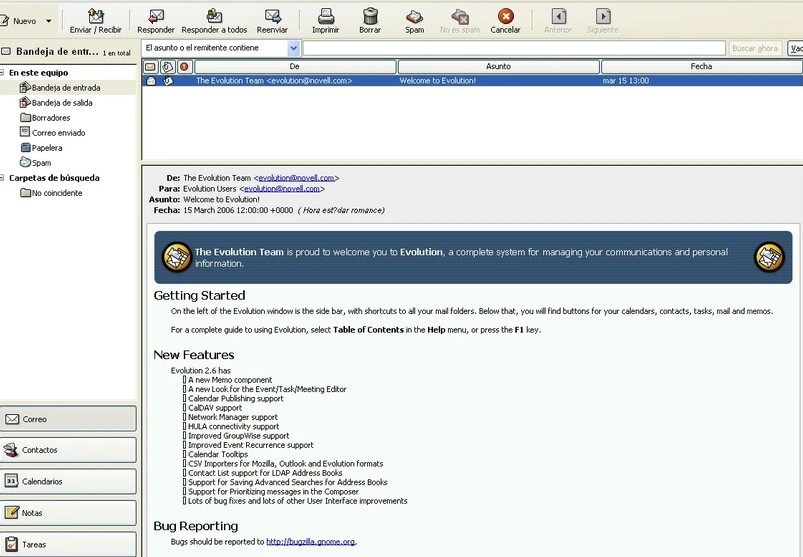
If you’re looking for a powerful free and open source email client built specifically for Linux, Evolution is one of the best options available. Developed by the GNOME Project, Evolution is much more than a traditional email client. It combines email, calendars, contacts, tasks, and notes into a single productivity application, making it an excellent choice for professionals and businesses that rely on email every day.
Unlike lightweight email clients that focus solely on sending and receiving messages, Evolution is designed to serve as a complete personal information manager (PIM). It offers features similar to Microsoft Outlook while remaining free and open source. This makes it attractive for Linux users who want an Outlook-like experience without paying for proprietary software.
Evolution supports virtually every major email service, including Gmail, Outlook, Microsoft 365, Yahoo Mail, Proton Mail, Zoho Mail, Fastmail, and custom business email accounts. It works with standard email protocols such as IMAP, POP3, and SMTP and offers excellent support for Microsoft Exchange through the Evolution-EWS plugin.
Key Features of Evolution
- Complete Email Management
Evolution allows you to send, receive, organise, and archive emails from multiple accounts. Its clean folder structure, conversation view, and advanced organisation tools make it easy to stay on top of large inboxes. Whether you manage one account or several, Evolution keeps your email workflow organised and efficient.
- Integrated Calendar
One of Evolution’s standout features is its built-in calendar. You can schedule meetings, manage appointments, set reminders, create recurring events, and synchronise calendars with online services.
- Task Management
Evolution includes a dedicated task manager that helps you organise projects and track important work. You can create to-do lists, assign due dates, prioritise tasks, and mark them as completed.
- Encryption and Security
Evolution supports encrypted email communication using OpenPGP and S/MIME. These technologies help protect sensitive information by encrypting messages and verifying sender identities through digital signatures. Combined with secure SSL/TLS connections, Evolution provides strong protection for personal and business communications.
- Offline Email Access
Evolution stores synchronised email locally, allowing you to read messages, search folders, write emails, and organise your inbox even when you don’t have an internet connection. Once connectivity is restored, your changes automatically synchronise with the email server.
Evolution Pros and Cons
Pros
- Completely free and open source
- Excellent Outlook alternative for Linux
- Built-in email, contacts, tasks, and notes
- Supports Microsoft Exchange and MS 365
- Supports all email and custom domains
- Powerful filtering and search capabilities
- Conversation view improves email organisation
- Supports OpenPGP and S/MIME encryption
- Reliable offline access
- Well integrated with the GNOME desktop
Cons
- Primarily designed for Linux users.
- The interface may feel overwhelming for beginners due to its many productivity features.
- Customisation options are limited
Evolution Email Pricing
Evolution is completely free to download and use under an open source license. There are no subscription fees, licensing costs, or premium versions.
How to Choose the Best Open Source Email Client
With so many free and open source email clients available, choosing the right one can be confusing. While they all help you send and receive emails, they differ in terms of features, ease of use, security, customisation, and platform support. The best email client is the one that fits your workflow, operating system, and communication needs.
Here are the most important factors to consider before you choose an email client.
- Check Operating System Compatibility
The first thing to consider is whether the email client supports your operating system. Some email clients are available on Windows, macOS, and Linux, while others are designed specifically for Linux desktop environments.
- Make Sure It Supports Your Email Provider
Most open source email clients support standard protocols like IMAP, POP3, and SMTP, but it’s still worth confirming compatibility with your email service. If you use Gmail, Outlook, Microsoft 365, Yahoo Mail, Proton Mail, Zoho Mail, Fastmail, or a custom domain email address, verify that the client supports your provider and any required authentication methods, such as OAuth.
- Look for Strong Security Features
Email often contains sensitive personal and business information, making security an important consideration. A good open source email client should support features such as SSL/TLS encryption, OpenPGP encryption, S/MIME encryption, digital signatures, Spam filtering and phishing protection
- Evaluate Multiple Account Support
Many people manage more than one email address for personal, work, and business communication. A good email client should allow you to add multiple email accounts, switch between accounts easily, use a unified inbox, assign separate identities and signatures and Organise folders independently.
- Look for Customisation Options
One of the biggest advantages of open source software is flexibility. Many email clients let you customise Themes, Dark mode, Toolbar layouts, Keyboard shortcuts, Extensions, plugins, and folder organisation. The more customizable the application, the easier it becomes to create a workflow that fits your preferences.
- Verify Active Development
Open source projects rely on ongoing development to remain secure and compatible with modern email services. Before installing an email client, check whether it receives regular updates, fixes security vulnerabilities, has an active developer community, and supports recent authentication methods. and maintains compatibility with major email providers.
Final Thoughts
Choosing the right free and open source email client ultimately comes down to your operating system, workflow, and the features you value most. Whether you’re managing a single personal inbox or multiple business email accounts, there’s an option that can help you stay organised, improve productivity, and keep your communications secure.
If you’re looking for the best all-around email client, Mozilla Thunderbird remains the top recommendation thanks to its excellent balance of usability, security, customisation, and broad compatibility with major email providers.
For Linux users, Evolution and KMail offer complete productivity suites with integrated calendars, contacts, and task management, making them excellent choices for professionals and business users. If speed and low resource usage are your priorities, Claws Mail delivers outstanding performance even on older hardware.
The good news is that every email client featured in this guide is free to download, so you can try several before deciding which one best matches your workflow. As your needs change, you can always switch to another client without changing your email address or provider, thanks to their support for open email standards like IMAP, POP3, and SMTP. No matter which option you choose, moving to an open source email client gives you greater control over your email experience, stronger privacy, and the flexibility to manage all your accounts from one place.
Frequently Asked Questions (FAQs)
What is the best free and open source email client?
Mozilla Thunderbird is widely regarded as the best free and open source email client for most users. It offers an excellent balance of performance, security, customisation, and ease of use. Thunderbird supports multiple email accounts, works with major email providers like Gmail and Outlook, includes built-in calendar and contact management, and receives regular updates from an active community.
Are open source email clients safe to use?
Yes, reputable open source email clients are generally very safe to use. Since their source code is publicly available, developers and security experts can inspect it for vulnerabilities, helping identify and fix security issues more quickly. Many open-source email clients also support features such as SSL/TLS encryption, OpenPGP encryption, spam filtering, phishing protection, and digital signatures to keep your communications secure.
Can I use an open source email client with Gmail or Outlook?
Absolutely. Most open source email clients support standard email protocols such as IMAP, POP3, and SMTP, allowing them to work with popular email services like Gmail, Outlook, Microsoft 365, Yahoo Mail, Proton Mail, Zoho Mail, and custom domain email accounts. Some providers may require OAuth authentication or app-specific passwords during setup, but the configuration process is usually straightforward.
What’s the difference between a free email client and an open source email client?
A free email client is software you can use without paying, but its source code is usually proprietary and not available for public inspection or modification. An open source email client, on the other hand, makes its source code publicly available under an open-source license, allowing anyone to inspect, modify, and contribute to the project.





0 Comments